
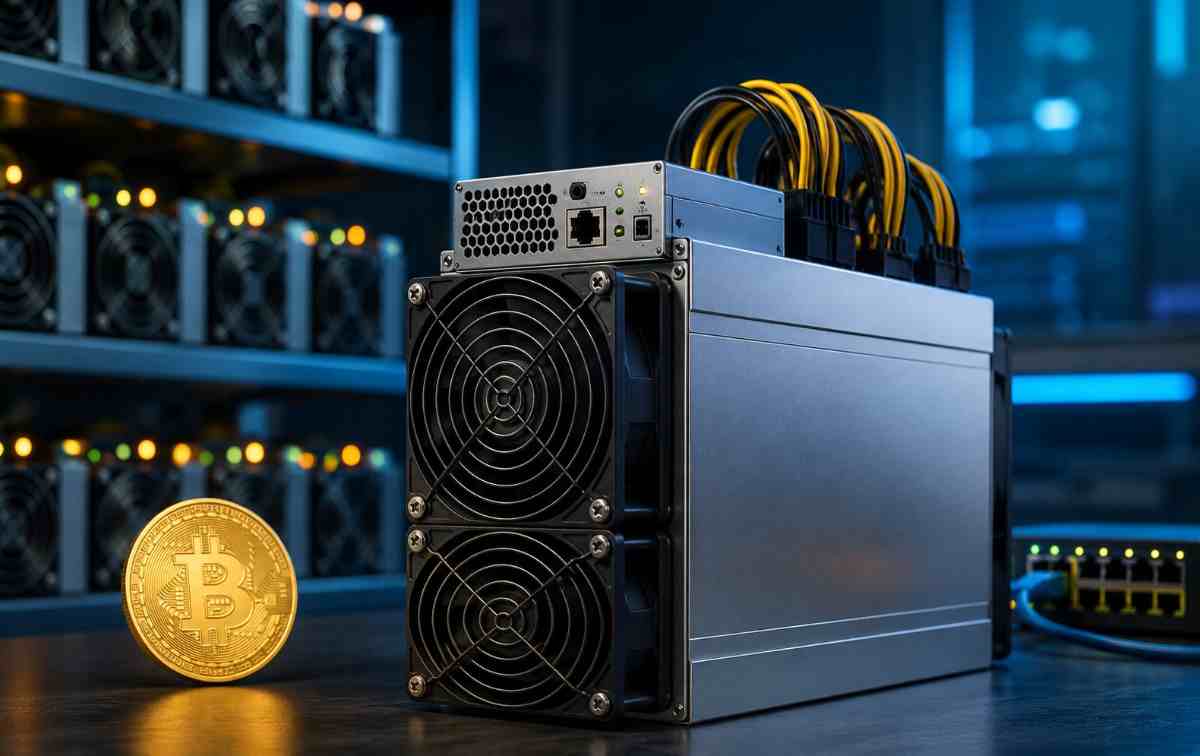
Configuring a WhatsMiner for Bitcoin mining involves connecting the miner to your local network, finding its IP address, opening the WhatsMiner management interface, entering your Bitcoin mining pool and worker details, saving the settings, and restarting the mining process. Once configured correctly, the WhatsMiner can connect to the pool and begin submitting Bitcoin mining shares.
Whether you are setting up a WhatsMiner M60S, M50S, M30S, M56S, M63, M66, or another compatible MicroBT ASIC miner, the basic configuration process is similar. The exact interface and available settings can vary by model and firmware version.
What You Need Before Configuring a WhatsMiner?
Before starting the setup, prepare:
- A WhatsMiner ASIC miner
- Suitable power infrastructure
- An Ethernet network connection
- A computer connected to the same local network
- A Bitcoin mining pool account
- Your mining pool URL
- A worker name
- A pool password, if required
- A Bitcoin wallet or payout address
- Access to the WhatsMiner web interface or WhatsMinerTool
For large-scale installations, also consider network planning, electrical capacity, cooling, ventilation, noise management, and continuous monitoring.
Step 1: Connect and Power On Your WhatsMiner
Connect the WhatsMiner to your network using an Ethernet cable and connect it to an appropriate power supply.
After powering on the miner, allow the control board and mining hardware to initialize. The miner normally obtains an IP address automatically through DHCP when connected to a network that provides DHCP service.
Do not immediately change advanced performance settings. First make sure the miner can communicate with your local network.
Step 2: Find Your WhatsMiner IP Address
You need the miner’s local IP address before you can access its configuration dashboard.
There are several ways to find it:
Use WhatsMinerTool
MicroBT’s WhatsMinerTool can help discover miners on your local network and is designed for managing functions such as IP configuration, pool settings, monitoring and maintenance.
Check Your Router
Log in to your router and open the connected-device or DHCP-client list. Look for the WhatsMiner or the corresponding MAC address.
Use an IP Scanner
A local network scanner can also identify devices connected to your network.
Once you identify the correct IP address, copy it for the next step.
Step 3: Open the WhatsMiner Configuration Interface
Open a web browser on a computer connected to the same local network.
Enter the miner’s IP address into the browser address bar, for example:
http://192.168.1.100
The WhatsMiner login page should appear.
Enter the credentials configured for your device. Do not assume that every WhatsMiner model or firmware version uses the same factory credentials. If the miner has already been configured, use the existing administrator credentials.
After logging in, change any default or weak password before exposing the management interface to a broader network.
Step 4: Configure the Bitcoin Mining Pool
The most important part of WhatsMiner configuration is entering the correct mining pool information.
Depending on the firmware, you may find these settings under a section such as:
Configuration → CGMiner Configuration
or a newer pool-management interface.
MicroBT documentation shows fields for the pool address, worker name and password, with additional pool slots available for backup connections.
Enter the information provided by your selected Bitcoin mining pool.
Pool 1
Enter:
- Pool URL: The Bitcoin Stratum address supplied by your mining pool
- Worker: Your pool account and worker/rig name
- Password: The password or value specified by your pool
For example, a pool may provide a worker format such as:
youraccount.m60s01
The exact worker format depends on the mining pool, so follow the pool’s current instructions rather than copying settings from another provider.
Pool 2 and Pool 3
Where supported, configure backup mining pools.
Using multiple pool entries helps reduce unnecessary downtime if the primary pool becomes temporarily unreachable. MicroBT documentation and WhatsMiner configuration interfaces support multiple pool entries, commonly Pool 1, Pool 2 and Pool 3.
Step 5: Save and Apply the Configuration
After entering the pool details, carefully check:
- Pool URL
- Port number
- Worker name
- Password
- Coin type
- Backup pool information
Then select Save & Apply.
MicroBT’s documentation specifically describes saving the pool configuration and restarting the mining process or control board so the changes take effect.
Step 6: Restart the Mining Process
After saving the configuration, restart the relevant mining process or reboot the miner according to your firmware interface.
Some WhatsMiner versions provide a CGMiner Status area where the CGMiner process can be restarted. MicroBT documentation notes that restarting CGMiner or the control board can be necessary after changing mining-pool settings.
Give the miner several minutes to reconnect to the pool.
Step 7: Check Whether Your WhatsMiner Is Mining
After restarting, open the miner’s status dashboard.
Look for indicators such as:
- Hashrate
- Accepted shares
- Rejected shares
- Power consumption
- Fan speed
- Temperature
- Mining duration
- Pool connection status
- Hardware errors
A healthy miner should gradually report hashrate and accepted shares to the mining pool.
Do not judge performance immediately after startup. Allow sufficient time for the miner to stabilize and for the pool dashboard to display meaningful statistics.
How to Optimize WhatsMiner Bitcoin Mining Performance?
Correct configuration is only the beginning. Your actual Bitcoin mining profitability depends on several variables.
1. Monitor Electricity Consumption
Electricity is one of the largest ongoing expenses in Bitcoin mining. Compare the miner’s power consumption with your electricity rate to estimate operating costs.
2. Choose an Efficient Mining Mode
Depending on the WhatsMiner model and firmware, different power or performance settings may be available.
Avoid changing frequency, voltage or power settings without understanding their effect. Aggressive settings can increase power consumption, heat and hardware stress.
3. Maintain Proper Cooling
ASIC miners generate substantial heat. Maintain adequate airflow and keep air intake and exhaust paths clear.
For high-density mining environments, dedicated ventilation, immersion cooling or hydro-cooling infrastructure may be appropriate depending on the hardware.
4. Monitor Hashrate and Rejected Shares
A sudden decrease in hashrate or an unusually high rejected-share rate can indicate:
- Network problems
- Incorrect pool configuration
- Hardware instability
- Excessive temperature
- Pool-side issues
- Power problems
Regular monitoring helps identify problems before they cause extended downtime.
Common WhatsMiner Configuration Problems
1. WhatsMiner IP Address Cannot Be Found
Check that:
- Ethernet is connected correctly
- The miner is powered on
- Your computer is on the same network
- DHCP is working
- The router recognizes the miner
WhatsMinerTool can also be used to detect IP and MAC information on supported setups.
2. Miner Connects but Does Not Start Mining
Recheck the pool URL, port, worker name and password.
A single incorrect character in the Stratum address can prevent the miner from connecting.
3. Hashrate Is Lower Than Expected
Check:
- Miner temperature
- Power supply
- Network stability
- Pool configuration
- Hardware status
- Firmware
- Operating mode
Also remember that displayed hashrate can fluctuate. Compare performance over a reasonable period rather than relying on a single reading.
4. Configuration Changes Are Not Taking Effect
Make sure you clicked Save & Apply and restarted the mining process or miner when required. MicroBT documentation specifically notes restarting CGMiner or the control board after pool configuration changes.
Should You Use WhatsMinerTool?
Yes. WhatsMinerTool is particularly useful when managing multiple WhatsMiner machines.
According to MicroBT’s current support documentation, the tool can assist with IP management, pool configuration, monitoring, firmware upgrades, remote control and other miner-management functions.
For a single miner, the web interface may be sufficient. For a larger mining operation, centralized management can make configuration and monitoring considerably easier.
Frequently Asked Questions
How do I configure a WhatsMiner for Bitcoin mining?
Connect the WhatsMiner to Ethernet and power, find its IP address, open the miner’s web interface, enter your Bitcoin mining pool URL and worker credentials, save the configuration, and restart the mining process.
What information is required to configure a WhatsMiner?
You generally need a mining pool address, worker name and pool password or password value. The exact requirements depend on your selected pool.
Can I configure multiple mining pools on WhatsMiner?
Yes. Supported WhatsMiner interfaces provide multiple pool fields, allowing you to configure a primary pool and backup pools.
Why can’t I find my WhatsMiner IP address?
Check your router’s connected-device list, verify the Ethernet connection and use WhatsMinerTool or another local network discovery method to identify the miner.
Does WhatsMiner need to be connected by Ethernet?
WhatsMiner ASIC miners are generally configured through a wired network connection. Follow the networking requirements for your specific model.
How can I monitor WhatsMiner performance?
Use the miner’s web dashboard, WhatsMinerTool and your mining pool dashboard to monitor hashrate, accepted shares, rejected shares, temperature, power and connection status.
Final Takeaway
Configuring a WhatsMiner for Bitcoin mining is straightforward when the process is completed in the correct order: connect the miner, identify its IP address, access the management interface, configure the mining pool and worker, save the settings, restart the mining process, and verify hashrate and pool connectivity.
For better long-term results, configuration should be combined with efficient power management, reliable cooling, network stability and continuous performance monitoring. If you are purchasing or deploying WhatsMiner ASIC miners, choosing the right model and operating environment is just as important as completing the initial configuration.